 Klipora
Requirements
| Part | Needed |
|---|---|
| Operating system | Windows 10 or 11, 64-bit. Tested on Windows 11. macOS is not supported yet. |
| Premiere Pro | 2026 (26.x). The panel is a CEP 12 extension. |
| Python | 3.14 (the tested version), with pip. |
| FFmpeg | 8.x full build (libass and NVENC) available on PATH. |
| GPU | Optional. An NVIDIA GPU with a recent driver runs Whisper on CUDA 12. Tested with 8 GB VRAM. Without it, the CPU is used. |
| Disk | A few GB free for the Whisper model, caches and renders. Klipora checks free space before every render. |
Install the engine
Klipora has two parts: the panel that lives inside Premiere, and a Python engine that does the heavy work on your PC. Open PowerShell and run the commands below.
1. Get the code
Clone the repository, or download the ZIP from GitHub and extract it. The examples use C:\klipora.
git clone https://github.com/muhrifqie/klipora.git C:\klipora2. Python and packages
Install Python 3.14 if you do not have it, then install the engine packages. --no-cache-dir keeps pip from filling drive C.
winget install Python.Python.3.14
py -3.14 -m pip install --no-cache-dir -r C:\klipora\requirements.txt
# NVIDIA GPU only (optional): CUDA 12 libraries for faster transcription
py -3.14 -m pip install --no-cache-dir -r C:\klipora\requirements-gpu.txt
3. FFmpeg
Klipora needs a full FFmpeg build (with libass for captions and NVENC for fast video renders). Open a new terminal afterwards so PATH is updated.
winget install Gyan.FFmpeg
ffmpeg -version
GPU setup
Transcription uses faster-whisper. On an NVIDIA GPU it runs about 1 minute per 30 minutes of video on the test machine. The CUDA 12 libraries (cuBLAS, cuDNN) come from the pip packages in requirements-gpu.txt, so you only need a current NVIDIA driver.
# check that Windows sees the GPU and the driver
nvidia-smi- Default model:
large-v3-turbo. The first transcription downloads it, so the first run takes longer. - Only one Whisper job uses the GPU at a time. Others wait instead of running out of VRAM.
- No NVIDIA GPU, or low VRAM? Turn off Pakai GPU untuk transkripsi in Settings and the CPU is used.
- Transcripts are cached next to the media, so every other tool reuses them for free.
Enable the panel in Premiere
Klipora is not signed or sold through Adobe Exchange, so Premiere hides it until you allow unsigned extensions. Premiere Pro 26.x uses CEP 12, which reads the CSXS.12 registry key.
1. Turn on PlayerDebugMode
reg add "HKCU\Software\Adobe\CSXS.12" /v PlayerDebugMode /t REG_SZ /d 1 /f0.2. Link the panel folder
Create a junction from the CEP extensions folder to the panel folder of the repo. A junction keeps one copy, so a git pull updates the panel too.
New-Item -ItemType Directory -Force "$env:APPDATA\Adobe\CEP\extensions" | Out-Null
New-Item -ItemType Junction -Path "$env:APPDATA\Adobe\CEP\extensions\com.klipora.panel" -Target "C:\klipora\panel"
3. Open it
Restart Premiere Pro, then choose Window > Extensions and pick the Klipora panel. Dock it wherever you like. It works from 280 px wide.
First run
- Open Pengaturan (Settings, the slider icon). Under Mesin (engine), set Python to
py,pythonor the full path topython.exe, then click Tes. - Click Cek ulang (check again). Python, FFmpeg and GPU should turn green. The AI dot stays grey until you add a provider, which is fine.
- Pick a Folder kerja (work folder) on a drive with free space. Reviews, renders and XML files go there, one folder per sequence.
- Open any sequence and start with Potong Silence. It is the fastest way to see the whole flow.
Shared basics
Every tool follows the same pattern, so once you know one you know them all.
- Scope: the source card at the top picks Seluruh sequence (whole sequence), In/Out or Clip terpilih (selected clips).
- Presets first: each tool opens with sensible presets. Fine-tuning hides under Pengaturan lanjutan (advanced).
- Tinjau (review): results come as a checklist. Click a row to move the Premiere playhead there, press Space to listen, uncheck what should stay. Kirim ke marker sends rows to timeline markers.
- Apply: Ctrl+Enter runs the main button. Cuts land on a cloned sequence next to yours; Buka yang asli opens your original again.
- Re-runs keep your choices: rows you toggled by hand stay that way when you analyze again.
- Ctrl+K opens the command palette to jump to any tool.
Tools
Silence cutting (Potong Silence)
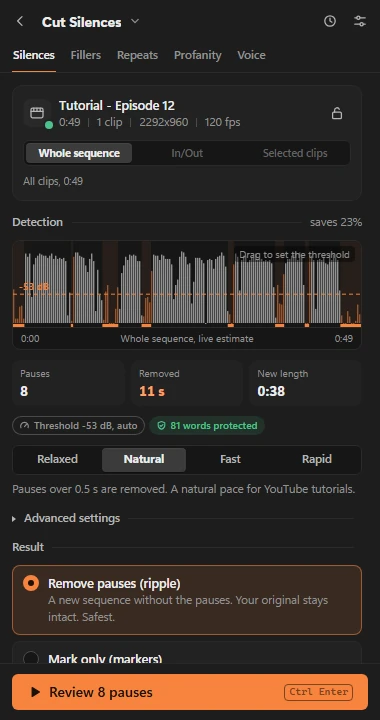
Finds pauses across every unmuted audio track and removes them with a ripple on a clone. A frame only counts as silent when all included tracks are silent.
- Pick a style: Santai, Natural (default), Cepat or Kilat, from relaxed to tight.
- The threshold is automatic (calculated from the whole source file). Drag the line on the waveform or use the arrow keys to nudge it.
- Keep Lindungi kata (word guard) on. It needs a transcript; tick Buat transkrip dulu if there is none yet.
- Choose the result: remove pauses (ripple), markers only, or mute the pauses. Then review and apply.
Running it again on an already cut sequence finds no new gaps, because the threshold comes from the source media and not the cut timeline.
Filler words (Hapus Filler)
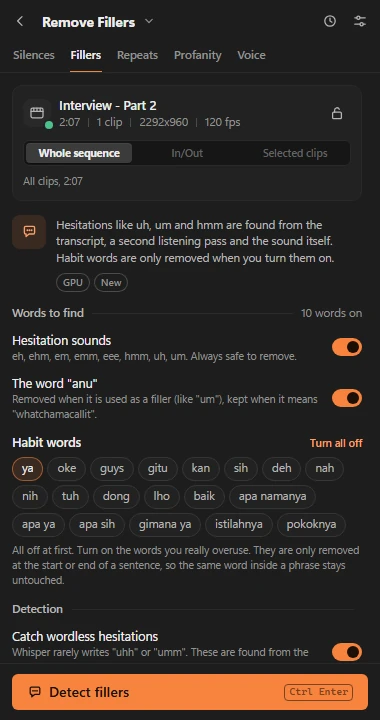
Removes hesitations such as eh, ehm, emm, eee, hmm, uh and um. Three detectors work together: the main transcript, a second verbatim listening pass, and an acoustic detector that catches hesitations Whisper did not write down.
- Kepekaan (sensitivity): careful 80 %, balanced 65 % (default), or clean 50 %.
- Habit words (ya, oke, gitu, apa namanya...) are off until you pick them. After a run each chip shows how often the word sits at a phrase boundary.
- Rows marked Mepet are glued to a real word. Listen before cutting those.
- Sekalian potong jeda also removes pauses in the same pass, using your silence settings.
Repeated takes (Potong Pengulangan)
Finds stutters, restarts, corrections ("sorry, I mean...") and full retakes, and removes the earlier attempt so your last take always stays.
- Presets Ketat, Normal, Longgar set the minimum confidence, sentence similarity and the maximum gap between takes.
- Dengar plays 2 seconds before and after the cut with the cut applied, so you hear the edit before committing.
- Whisper hallucinations (text over silence) are flagged, never cut. Minta pendapat AI adds an opinion per row but never changes a checkbox.
Profanity censor (Sensor Kata Kasar)
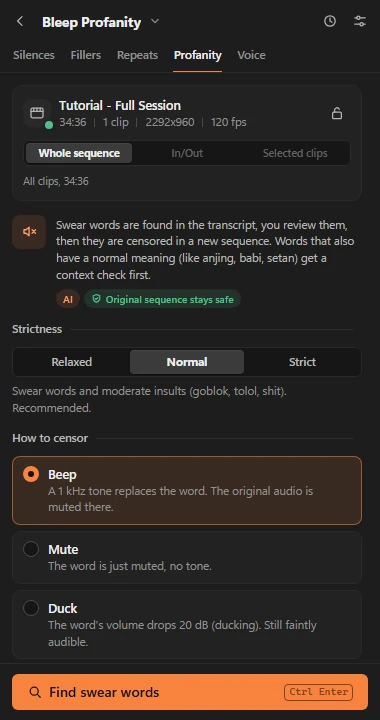
Finds swear words (Indonesian, regional and English) in the transcript and a second listening pass, then censors the ones you keep checked.
- Level: Longgar, Normal or Ketat. Words with an innocent meaning (for example animal names) are judged by context, with optional AI votes.
- Mode: Bip (a 1 kHz tone matched to your voice level), Senyap (mute), Kecilkan (duck by 20 dB) or your own sound.
- Keep personal lists: always censor, always allow. Captions can mask the same words automatically.
Animated captions (Auto Caption)
Word-by-word captions from the local transcript, previewed over your real frame and rendered as a transparent overlay on its own captions track. Edits re-render only the changed part.
- Setup: pick a starting template, hide fillers in captions, tidy numbers and Rupiah, add glossary words that are often misheard. Then Buat caption.
- Template: 51 templates in groups (Shorts, tutorial, podcast, promo, cinematic, gaming and more). Hover to see the animation. Cocok filters templates that fit this video shape. Acak gaya and Gabung gaya mix styles.
- Teks: edit words, split or merge pages, style a single word. Edits are tied to stable word ids and survive re-runs.
- Gaya (style): fonts with real previews, colors and gradients, outline, shadow and 3D, glow, 10 background shapes, active word, position. Quick effects and a reset per group. Ctrl+Z works.
- Animasi: 40 animations (in, active word, out, loop), a keyframe Studio, and Efek suara: sounds on numbers, key words, emoji or every page, placed on one dedicated SFX track.
- Ekspor: apply the overlay, or export native SRT captions. Perbarui di timeline swaps in a new version in place.
Copy style from an image
Take a screenshot of a caption you like (Win+Shift+S), open Template and use Tiru gaya dari gambar > Tempel. Compare "your image" with the result, then use it or save it. With the AI image reader off, matching is free and offline; with it on, it uses one Vision request.
Brand kit and saved styles
In Gaya, the Brand Kit bar stores 4 colors, a title font, brand words that are always spelled right, emoji and tone. Sorot kata penting (AI) suggests words to color. Simpan gaya saves the current look to Gaya Saya (my styles), with export and import as .json. New videos start from the style you used last, remembered separately for vertical and horizontal.
Auto chapters (Bab Otomatis)
Creates YouTube chapters from the transcript: an editable list, chapter markers on the sequence, and the 00:00 Title text for your description (copied to the clipboard and saved as .txt).
- Edit titles and times, merge chapters, add one at the playhead. Live warnings follow YouTube rules (first at 00:00, at least 3 chapters, at least 10 seconds each).
- With AI: better titles, plus Judul, deskripsi & hashtag for video titles, description and tags. Without AI: topic shifts and cue words, with titles flagged for you to check.
Viral clip finder (Klip Viral)
Finds the moments of a long video that work as Shorts, TikTok or Reels, scores them 0 to 100, and turns the ones you keep into one sub-sequence per clip, plus score-colored markers.
- Clip length presets from 15 to 90 seconds, count (automatic, 3, 5, 10), a style (education, funny, sales, story or custom) and an optional topic.
- Jadikan 9:16 also makes a vertical version of each clip with Auto resize.
- Works without AI (labelled "tanpa AI"), scoring by keywords, voice energy and speaking density.
Auto zoom
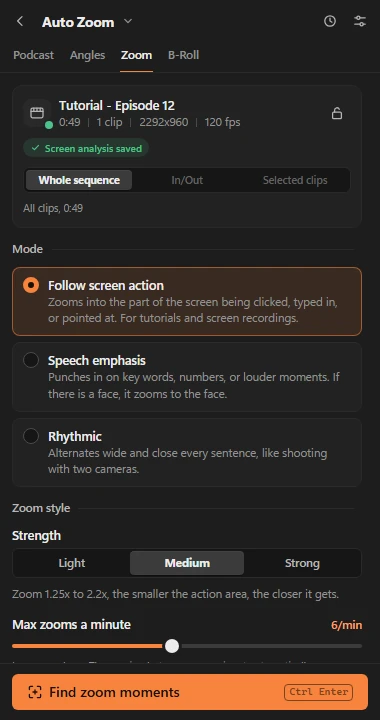
Punch-in zooms as editable Motion Scale and Position keyframes on a clone of your sequence.
- Ikuti aksi layar (follow screen action, default): for screen recordings. Zooms toward clicks, typing, menus and cursor pauses, from 1.25x up to 2.2x.
- Penekanan bicara (speech emphasis): punch in on action and emphasis words, numbers and louder words, centred on the biggest face.
- Ritmis: alternates wide and close every other sentence, like a two-camera shoot.
- Set strength, a maximum zooms per minute, animation (smooth, fast, cut) and areas to ignore such as the taskbar.
Auto resize and reframe (Auto Resize)
Makes a 9:16, 1:1, 4:5 or 16:9 version of the sequence. Every result is a new sequence.
- Pintar (smart, default): framing follows the cursor, clicks, typing and page changes, or faces and the active speaker. Editable Position keyframes per clip.
- Fokus + blur: for screen content, a sharp window that follows the action over a blurred background, so forms and text are not cropped.
- Premiere Auto Reframe: Premiere's own reframe, started from the panel.
Virtual camera angles (Angle Otomatis)
A single-camera "multicam": each clip gets a static wide, medium or close crop (100 / 118 / 140 % by default). The angle changes on every cut, never repeats twice in a row, and is anchored on the action or a face.
- Presets Halus, Normal, Sering. Choose when to switch: on every cut, or only after a minimum shot length.
- Only one long clip? Tambah potongan di awal kalimat splits at sentence starts to create more angle changes.
Podcast multicam
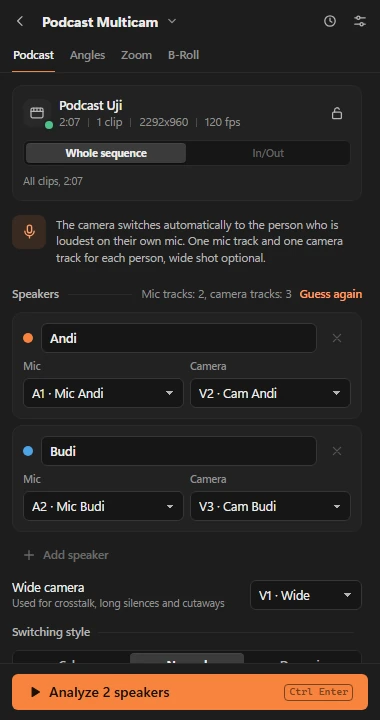
The camera follows whoever is talking. Put one mic track and one camera track per speaker (stacked and in sync), plus an optional wide camera.
- Tracks are mapped automatically. Naming them "Mic Andi" and "Cam Andi" makes it exact. Up to 6 speakers.
- Review each shot on a speaker ribbon, pick another camera by hand, then apply. Inactive camera clips are disabled on a clone; audio is never cut or muted.
B-roll
Finds moments in your speech that benefit from supporting footage and places clips on a new top video track of a clone.
- Sources: your own folder, Pexels stock video (add a free Pexels API key in Settings) or an AI still with a slow Ken Burns move. Credits are written to a text file.
- Placement is activity aware: a quiet screen gets full-screen b-roll, a screen with action gets a picture-in-picture card in the quietest corner, a busy screen is skipped.
Clear Voice (Suara Jernih)
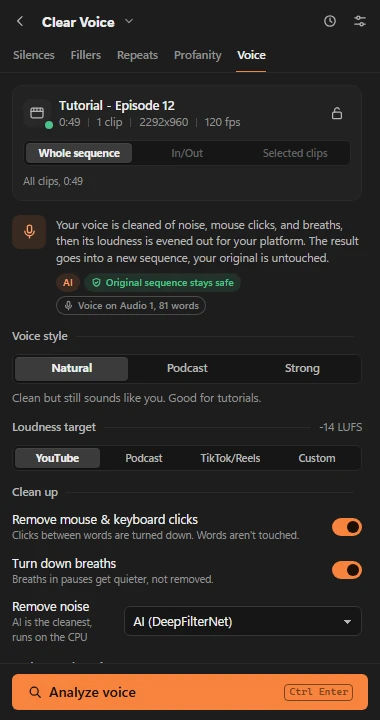
Makes your voice pleasant to listen to, non-destructively. The processed voice is rendered to a new audio track on a clone, and the original voice clips are disabled there.
- Denoise with DeepFilterNet3 (runs on the CPU), with adjustable strength.
- Clicks and breaths: mouse and keyboard clicks between words are lowered, breaths are softened. Never inside a word. Each one is listed for review.
- Loudness per platform: YouTube -14, podcast -16, TikTok/Reels -14 LUFS or your own target, true peak -1 dBTP.
- Music ducking: music tracks drop by 12 dB (adjustable) while you speak.
- Compare before and after in the result card. Buka yang asli goes back to the original.
AI providers
AI is optional. It improves chapter titles, viral clip picks, b-roll plans, retake opinions, ambiguous profanity, caption text cleanup and reading a caption style from an image. Without it, every tool falls back to its rules.
Add a provider
- Open Pengaturan > AI > Penyedia AI > Tambah penyedia and pick a provider. The URL fills in.
- Paste your API key and click Simpan kunci. The field empties right away; the key is encrypted with Windows DPAPI and never shown again.
- Click Ambil daftar model and pick the Cepat (fast), Pintar (smart) and optional Vision models.
- Tes koneksi, then Simpan. Reorder with the arrows: the top one is primary, the rest are backups.
| Provider | Where to get a key | Notes |
|---|---|---|
| Local proxy | your own | Any OpenAI-compatible server on 127.0.0.1 |
| OpenRouter | openrouter.ai/keys | One key, many models, some free |
| Gemini | aistudio.google.com/apikey | Daily free quota |
| OpenAI | platform.openai.com/api-keys | Paid |
| xAI | console.x.ai | Paid |
| Anthropic | console.anthropic.com/settings/keys | Paid, native Messages API |
| DeepSeek | platform.deepseek.com/api_keys | Low cost, no image input |
| Groq | console.groq.com/keys | Very fast, free quota |
| Ollama | no key | Runs on your PC, nothing leaves it |
| Custom | optional | Any endpoint with /chat/completions |
Troubleshooting
| Symptom | Fix |
|---|---|
| Klipora is not in Window > Extensions | Check the CSXS.12 PlayerDebugMode value is the string 1, the junction points at the panel folder (it must contain CSXS\manifest.xml), then fully restart Premiere. |
| Panel opens blank | Close the panel and open it again from the Window menu. If it stays blank, check that the folder was not copied without its subfolders. |
| Python shows "Belum dicek" or red | Set the full path to python.exe in Settings (run py -3.14 -c "import sys; print(sys.executable)" to find it), then click Tes. |
| FFmpeg red | Open a new terminal and run ffmpeg -version. If it is not found, reinstall with winget and restart Premiere so it sees the new PATH. |
| GPU red or "GPU busy" | Update the NVIDIA driver. Only one transcription runs at a time, so wait for the other job or cancel it. Otherwise turn the GPU off in Settings and use the CPU. |
| First transcription is slow | The Whisper model is downloaded on first use. After that, transcripts are cached and reused by every tool. |
| "Not enough disk space" | Klipora refuses to render when the drive is nearly full. Move the work folder to another drive in Settings. |
| AI: key rejected (401/403) | The key is wrong or revoked. Ubah > paste a new key > Simpan kunci. |
| AI: quota or rate limit (402/429) | Wait, top up, or move another provider to the top. Klipora already skips to the next one. |
| AI: not responding | Check the internet connection, or that Ollama / your proxy is running, then Cek status. |
| Cut sequence looks wrong | Your original is untouched. Click Buka yang asli, adjust the settings or uncheck rows, and run again. Re-runs keep your manual choices. |
Still stuck? Open an issue with your Premiere version, the step you were on and the error text. Never paste API keys or .env files.
Update and uninstall
Update
cd C:\klipora
git pull
py -3.14 -m pip install --no-cache-dir -r requirements.txt
Then close and reopen the panel in Premiere.
Uninstall
Remove the junction (this does not delete the repo), and optionally turn debug mode off again.
cmd /c rmdir "%APPDATA%\Adobe\CEP\extensions\com.klipora.panel"
reg add "HKCU\Software\Adobe\CSXS.12" /v PlayerDebugMode /t REG_SZ /d 0 /f